
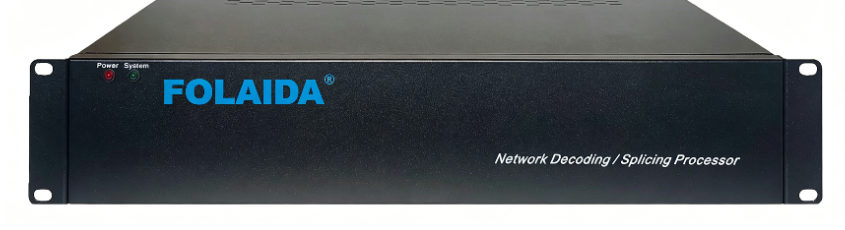
How to Install and Operate FOLAIDA Video Wall Processor
1. Pre-Wiring Inspection
1.1 Input Wiring
Connect computers, cameras and NVRs to corresponding input ports.
Select HDMI2.0/SDI/VGA/Network based on source types.
Power devices and set standard resolution & refresh rate.
1.2 Output Wiring
Connect outputs to displays via HDMI, fiber or HDBaseT.
Wire top to bottom, left to right, match physical screens with software channels.
2. Power On Sequence
Standard power-up protects FPGA for 24/7 running.
Turn on signal sources and wait for stable output.
Start FOLAIDA processor; self-check finishes in 10 seconds.
Power on splicing screens one by one.
Note: No-signal popups vanish after configuration.
3. Software Configuration
3.1 Input Settings
Identify all input signals and unify their specs.
Enable auto EDID matching for fast configuration.
3.2 Output Settings
Set resolution for standard or custom layouts; support 1080P/4K@60Hz.
Adjust brightness and color to match screen specs.
3.3 Layout Setup
Arrange screens per actual installation.
Supports matrix, curved and 90°/180° vertical layouts.
Trim border gaps, save and apply layout files.
4. Signal Switch & Image Adjust
4.1 One-Click Switch
Switch sources for full/single/split display areas.
Seamless switching removes black screen and flicker.
4.2 Image Fine-tune
Tune brightness, contrast and color globally or per screen.
One-click color correction available; support zoom, roam and max 32 floating windows.
5. Control & Maintenance
5.1 Local & Remote Control
Operate via PC, webpage or mobile; work with Crestron/AMX via RS232/LAN.
Store 256 scene presets for instant mode shift.
5.2 Real-time Monitoring
Check port status, temperature and voltage automatically.
Fault alert available; back up parameters frequently.
5.3 Free Firmware Upgrade
6. Quick Operation Tips
Most faults come from incorrect setup:
Unify IP address before wiring
Apply EDID to resolve black screen
Align layout with real screen arrangement
Save scene configurations regularly

